
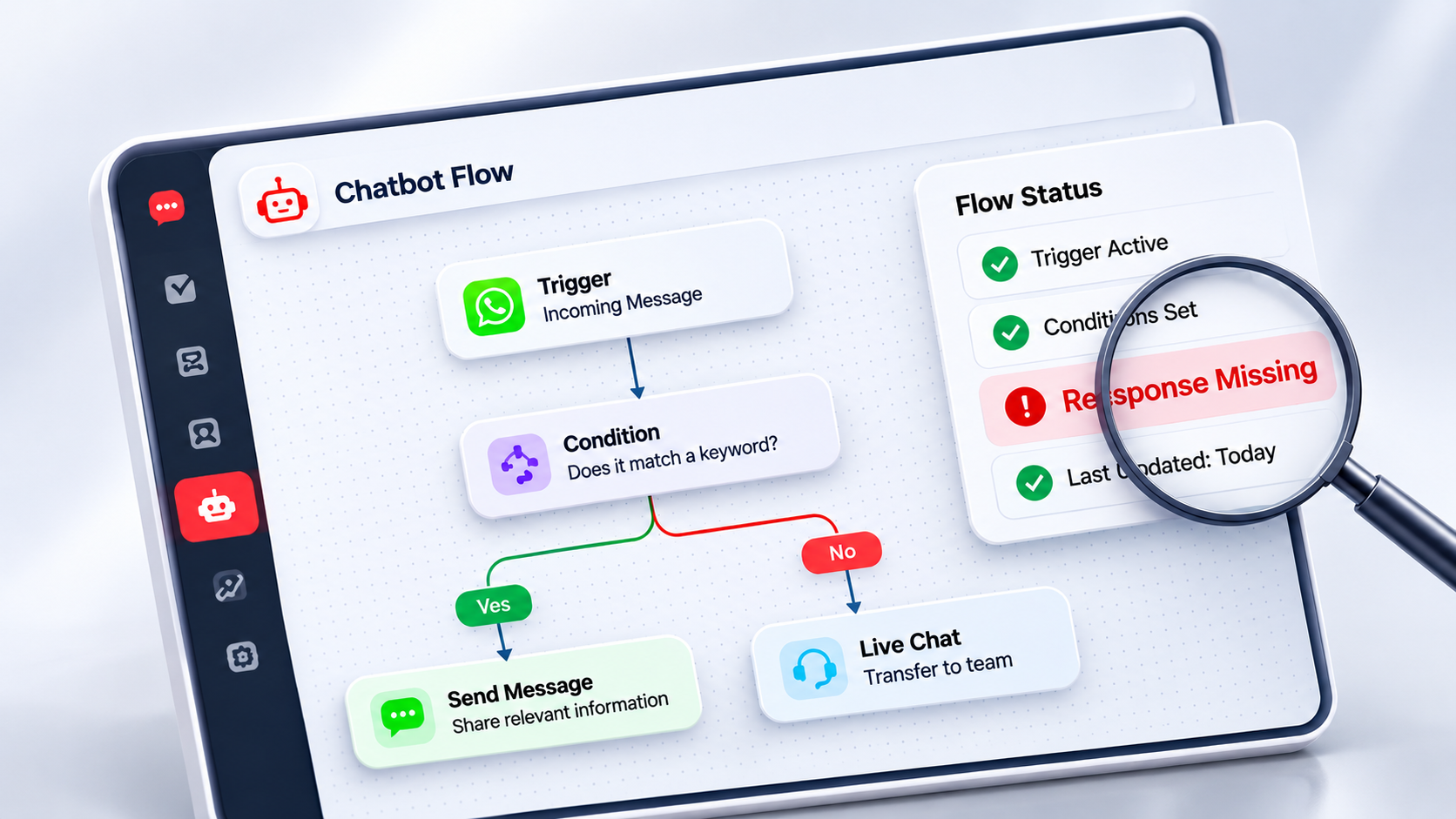
Why Is Your WhatsApp Chatbot Not Responding?

Why Is Your WhatsApp Chatbot Not Responding? Common Problems and How to Fix Them

You’ve set up a WhatsApp chatbot for your business. It answers customer questions, shares product information, collects inquiries, and helps your team manage incoming conversations. Everything seems to be working until a customer sends a message and receives no reply. Sometimes the chatbot stops responding completely. Other times, it replies to certain messages but ignores others. You might notice that it sends the wrong response, repeats the same message, or stops halfway through a conversation.

These problems can affect customer experience, particularly when WhatsApp is one of your main communication channels. Customers expect timely responses, and when an automated conversation stops unexpectedly, they may not know whether their inquiry has been received. However, a chatbot that is not responding does not necessarily mean the entire automation system has stopped working. The issue may be related to the WhatsApp connection, trigger settings, conversation flow, AI configuration, or message delivery.

Understanding where the problem occurs is the first step toward resolving it. In this article, we’ll explain the most common reasons a WhatsApp chatbot stops responding, how to troubleshoot these issues, and how ihakimi’s automation and monitoring features can help businesses investigate problems.

1. Your WhatsApp Business API Connection Has a Problem

A WhatsApp chatbot needs a working connection between the WhatsApp Business Platform and the system managing automated conversations. When a customer sends a message, WhatsApp sends the relevant event to the configured webhook. The connected system processes that event and determines whether an automated response should be sent.

If the connection is not configured correctly, incoming messages may not reach the automation system, or outgoing messages may fail. Possible causes include invalid access tokens, missing permissions, incorrect webhook configuration, or restrictions affecting the connected WhatsApp business account. For example, a chatbot might have been responding correctly before an API credential was changed. If the integration continues using the old credential, outgoing message requests may fail. It is also possible for incoming messages to reach the platform while outgoing replies fail because of an authentication or messaging error.

How to Fix It

Start by checking whether the connected WhatsApp channel is receiving customer messages. If incoming messages are visible but replies are not being delivered, investigate the outgoing message process rather than assuming the webhook connection is broken. Review the channel configuration, API credentials, and relevant error information.

In ihakimi, businesses can review their connected channel settings and available Error Logs to investigate recorded problems. Error Logs can help identify certain technical failures, but they may not explain every situation where an automated reply is missing. Some issues result from configuration or flow logic rather than a recorded API error.

2. Your Chatbot Trigger Is Not Activating

Automation triggers determine when a chatbot should begin a workflow or perform an action. Depending on the configuration, a trigger might respond to an incoming message, a keyword, or another supported event. If the trigger conditions do not match the customer’s message, the expected automation may not begin.

For example, a business might configure a keyword automation for customers who send the word “pricing.” However, a customer might ask, “Can you tell me how much your services cost?” Whether this activates the automation depends on the configured matching conditions. A keyword-based trigger should not be assumed to understand every variation of a customer’s question. This is why a chatbot may respond correctly to one message but remain silent when the same question is written differently.

How to Fix It

Review the trigger settings and confirm which messages or events are intended to activate the automation. Test different customer messages, including common variations, spelling mistakes, and longer questions.

ihakimi supports keyword automation, triggers, and a no-code Flow Builder for creating customer conversation workflows. Businesses can review these configurations to determine whether the correct automation is being activated. If customers frequently ask the same question in different ways, consider whether the workflow should use additional keyword conditions or an appropriately configured AI-powered response system.

3. A Condition in Your Chatbot Flow Is Preventing the Next Response

Sometimes a WhatsApp chatbot begins a conversation but stops after a few messages. For example, a customer selects a service, provides their name, and answers a question. However, the chatbot does not proceed to the next step. This may happen when the automation flow contains a condition that has not been satisfied.

Conditions allow businesses to create different conversation paths based on customer responses, stored information, or other configured values. If the next step depends on information that is missing or does not match the expected condition, the conversation may not continue as intended. Consider a chatbot that asks customers whether they need a product quotation or service information. If the flow expects a specific response but the customer types something unexpected, the automation may not have a suitable next step.

How to Fix It

Identify the exact point where the conversation stops. Review the previous action and confirm whether it collected or stored the required information correctly. Then check the condition that determines which step should run next.

With ihakimi’s Flow Builder, businesses can configure actions, conditions, and different conversation paths. When designing these flows, it is useful to include appropriate alternative responses for customers who provide unexpected information. Testing each possible path helps reduce situations where conversations stop without an explanation.

4. Your AI Chatbot Is Using Incomplete or Outdated Business Information

A chatbot does not always need to stop replying for something to be wrong. Sometimes it responds immediately but provides information that is incorrect, incomplete, or unrelated to the customer’s question. This is especially important for businesses using AI-powered chatbots. An AI model generates responses based on the instructions, conversation context, and information made available to it. If important business information is missing or outdated, the AI may provide an unreliable answer.

For example, a customer asks whether a particular service is available in their city. If the AI assistant does not have reliable information about the company’s service locations, it may not be able to answer correctly. Similarly, if a business updates its pricing or service policies but does not update the relevant knowledge sources, the chatbot may continue referring to older information.

How to Fix It

Review the instructions and business information available to the AI assistant. Make sure the relevant knowledge sources contain accurate service details, operating hours, policies, and frequently asked questions. ihakimi’s AI Hub includes AI Agents, AI Prompts, AI Functions, and Knowledge Base capabilities that businesses can use when configuring AI-powered conversations.

These features can support more relevant responses when configured with appropriate information and instructions. However, adding a Knowledge Base does not guarantee that every AI-generated response will be correct. Businesses should test responses regularly and establish instructions for situations where the assistant does not have enough reliable information. For questions involving live information, such as current stock or order status, an appropriate integration with the relevant business application may also be necessary.

5. Multiple Automations Are Sending Responses to the Same Message

Have you ever received two automated replies after sending only one message to a business? This can happen when multiple automation workflows are configured to respond to the same event. For example, a business may have a welcome-message automation, a keyword trigger, and another incoming-message workflow. If their conditions overlap, more than one automation may activate for the same customer message.

As a result, the customer might receive repeated welcome messages, unrelated responses, or multiple instructions at the same time. Repeated messages can also occur when duplicate events are processed or when an integration does not manage repeated webhook deliveries correctly. However, duplicate replies do not always indicate overlapping triggers. The actual cause depends on how the automation has been implemented.

How to Fix It

Review the active automations and identify which workflows can respond to the same incoming message. Check the trigger conditions and determine whether more than one workflow is expected to run.

In ihakimi, businesses can review their keyword automations, triggers, and Flow Builder configurations to investigate potential overlaps. If the issue involves a custom integration, the developer may also need to verify how duplicate webhook events are processed. After making changes, test the conversation again to confirm that the intended response is being sent.

6. WhatsApp Is Not Delivering the Chatbot’s Message

Sometimes the chatbot processes a customer’s request correctly and prepares a response, but the customer never receives it. This is a message delivery problem rather than necessarily an AI or chatbot logic problem. The WhatsApp Business Platform has technical requirements and messaging policies that businesses must follow. For example, businesses generally have a 24-hour customer service window after a customer’s latest message during which they can send free-form replies.

Outside that window, businesses must generally use approved WhatsApp message templates to initiate or resume communication, subject to applicable policies and opt-in requirements. Messages can also fail because of invalid recipient information, unsupported content, authentication problems, account restrictions, or other API-related errors. A message being accepted for processing does not necessarily mean it has been delivered to the recipient.

How to Fix It

First, determine whether the automation actually generated an outgoing message. If it did, investigate the message’s delivery status and any available error information. For businesses using ihakimi, relevant conversation information and Error Logs may help identify recorded messaging problems.

If the issue relates to WhatsApp’s messaging window, check whether an approved template is required. If the problem involves message formatting, recipient information, or API configuration, review the relevant settings. It is important to investigate the actual failure before repeatedly sending the same message.

7. Your Chatbot Cannot Access the Information the Customer Is Requesting

A WhatsApp chatbot may answer general questions correctly but struggle when customers request specific information. For example, a customer might ask: “Can you check the status of my order?”

The chatbot may understand the question, but that does not mean it can access the customer’s order details. To retrieve current information, the chatbot needs an appropriate connection to the application where that information is stored. This might be an e-commerce platform, CRM, booking application, or another business system.

Without the required integration, the chatbot cannot reliably verify current order details, appointment availability, or account-specific information. Even when an integration exists, incorrect credentials, missing permissions, or data-mapping problems may prevent the system from retrieving the required information.

How to Fix It

Identify which business application contains the information requested by the customer. Check whether the required integration is available, configured correctly, and authorized to access the relevant data. If the integration already exists, review its configuration and test whether the required information can be retrieved.

ihakimi supports integrations and AI Functions that can be configured to work with supported business processes and external applications. The exact capabilities depend on the available APIs, permissions, and implementation. Businesses should also use appropriate customer verification and access controls before sharing personal or account-specific information.


How to Troubleshoot a WhatsApp Chatbot Step by Step

When a chatbot stops responding, changing multiple settings at once can make it difficult to identify the original problem. A more practical approach is to investigate the conversation process in stages.

  • Start by sending a test message to the connected WhatsApp number.
  • Check whether the message reaches the automation platform. If it does not, investigate the WhatsApp connection and incoming message configuration.
  • If the message is received, check whether the expected trigger activates.
  • Next, review the automation flow and determine whether the conversation reaches the intended response step.
  • If the chatbot uses AI, review the relevant agent configuration, instructions, and knowledge sources.
  • If a response is generated, verify whether the outgoing message was successfully sent and delivered through WhatsApp.

This approach helps distinguish connection issues, automation problems, AI response errors, and message delivery failures. Instead of assuming the entire chatbot is broken, businesses can focus on the part of the process that is not working as expected.


How ihakimi Helps Businesses Investigate WhatsApp Chatbot Problems

A WhatsApp chatbot needs ongoing monitoring, particularly when businesses regularly update their services, conversation flows, or connected applications. ihakimi provides features that can support chatbot configuration, testing, and troubleshooting.

Error Logs

Error Logs provide visibility into recorded errors associated with supported platform operations. Businesses can review available error information when investigating technical problems. However, not every incorrect response or unexpected automation behavior will necessarily generate an error log.

Flow Builder

ihakimi’s no-code Flow Builder allows businesses to configure and review automated conversation paths. Teams can examine the actions and conditions used in their workflows and make changes when conversations are not following the intended path.

AI Hub

The AI Hub includes AI Agents, AI Prompts, AI Functions, and Knowledge Base capabilities. These features help businesses configure how AI-powered conversations work and what information is available to their assistants. When responses are incomplete or inaccurate, businesses can review the relevant AI instructions and knowledge sources.

Testers and Usage Logs

ihakimi includes testing capabilities and AI-related usage logs that can support investigation of applicable operations. The information available depends on the feature and operation being examined. These tools can help with testing and monitoring, but they should not be treated as a guarantee that every chatbot issue will be detected automatically.

LiveChat

Some customer questions require human assistance. ihakimi’s LiveChat functionality allows businesses to manage customer conversations through a shared communication interface. Businesses can configure their workflows and team processes so employees can assist customers when automated responses are insufficient. The specific handover behavior depends on how the conversation workflow is configured.


How to Prevent WhatsApp Chatbot Problems in the Future

Fixing a chatbot problem is important, but preventing recurring issues should also be part of managing customer automation. One useful practice is testing workflows whenever changes are made to triggers, conversation conditions, AI instructions, or connected applications. For example, adding a new keyword automation may affect an existing workflow if both respond to similar messages.

Testing can help identify such conflicts before customers encounter them. Businesses should also review their chatbot’s knowledge sources regularly. When operating hours, policies, product information, or services change, the relevant information should be updated. Monitoring customer conversations and available error information can help teams identify recurring problems.

It is equally important to establish a clear process for human assistance. Customers should have a way to reach a team member when their questions cannot be answered reliably through automation. A WhatsApp chatbot should be reviewed as business requirements evolve rather than treated as a one-time setup.


Wrapping It Up

When a WhatsApp chatbot stops responding, the cause is not always the chatbot itself. The issue may involve a WhatsApp API connection, an incorrect automation trigger, a conversation condition, incomplete AI instructions, message delivery restrictions, or a missing integration with another business system. Identifying the cause requires understanding how these components work together.

With features such as Flow Builder, Error Logs, AI Hub, Testers, and LiveChat, ihakimi provides tools that help businesses configure, review, and improve their automated customer conversations. If your WhatsApp chatbot is not responding as expected, start by checking the connection, automation settings, and available error information. Explore ihakimi and check the demo to learn how its WhatsApp automation and chatbot management features can support your business.

Why Is Your WhatsApp Chatbot Not Responding? Common Problems and How to Fix Them

You’ve set up a WhatsApp chatbot for your business. It answers customer questions, shares product information, collects inquiries, and helps your team manage incoming conversations. Everything seems to be working until a customer sends a message and receives no reply. Sometimes the chatbot stops responding completely. Other times, it replies to certain messages but ignores others. You might notice that it sends the wrong response, repeats the same message, or stops halfway through a conversation.

These problems can affect customer experience, particularly when WhatsApp is one of your main communication channels. Customers expect timely responses, and when an automated conversation stops unexpectedly, they may not know whether their inquiry has been received. However, a chatbot that is not responding does not necessarily mean the entire automation system has stopped working. The issue may be related to the WhatsApp connection, trigger settings, conversation flow, AI configuration, or message delivery.

Understanding where the problem occurs is the first step toward resolving it. In this article, we’ll explain the most common reasons a WhatsApp chatbot stops responding, how to troubleshoot these issues, and how ihakimi’s automation and monitoring features can help businesses investigate problems.

1. Your WhatsApp Business API Connection Has a Problem

A WhatsApp chatbot needs a working connection between the WhatsApp Business Platform and the system managing automated conversations. When a customer sends a message, WhatsApp sends the relevant event to the configured webhook. The connected system processes that event and determines whether an automated response should be sent.

If the connection is not configured correctly, incoming messages may not reach the automation system, or outgoing messages may fail. Possible causes include invalid access tokens, missing permissions, incorrect webhook configuration, or restrictions affecting the connected WhatsApp business account. For example, a chatbot might have been responding correctly before an API credential was changed. If the integration continues using the old credential, outgoing message requests may fail. It is also possible for incoming messages to reach the platform while outgoing replies fail because of an authentication or messaging error.

How to Fix It

Start by checking whether the connected WhatsApp channel is receiving customer messages. If incoming messages are visible but replies are not being delivered, investigate the outgoing message process rather than assuming the webhook connection is broken. Review the channel configuration, API credentials, and relevant error information.

In ihakimi, businesses can review their connected channel settings and available Error Logs to investigate recorded problems. Error Logs can help identify certain technical failures, but they may not explain every situation where an automated reply is missing. Some issues result from configuration or flow logic rather than a recorded API error.

2. Your Chatbot Trigger Is Not Activating

Automation triggers determine when a chatbot should begin a workflow or perform an action. Depending on the configuration, a trigger might respond to an incoming message, a keyword, or another supported event. If the trigger conditions do not match the customer’s message, the expected automation may not begin.

For example, a business might configure a keyword automation for customers who send the word “pricing.” However, a customer might ask, “Can you tell me how much your services cost?” Whether this activates the automation depends on the configured matching conditions. A keyword-based trigger should not be assumed to understand every variation of a customer’s question. This is why a chatbot may respond correctly to one message but remain silent when the same question is written differently.

How to Fix It

Review the trigger settings and confirm which messages or events are intended to activate the automation. Test different customer messages, including common variations, spelling mistakes, and longer questions.

ihakimi supports keyword automation, triggers, and a no-code Flow Builder for creating customer conversation workflows. Businesses can review these configurations to determine whether the correct automation is being activated. If customers frequently ask the same question in different ways, consider whether the workflow should use additional keyword conditions or an appropriately configured AI-powered response system.

3. A Condition in Your Chatbot Flow Is Preventing the Next Response

Sometimes a WhatsApp chatbot begins a conversation but stops after a few messages. For example, a customer selects a service, provides their name, and answers a question. However, the chatbot does not proceed to the next step. This may happen when the automation flow contains a condition that has not been satisfied.

Conditions allow businesses to create different conversation paths based on customer responses, stored information, or other configured values. If the next step depends on information that is missing or does not match the expected condition, the conversation may not continue as intended. Consider a chatbot that asks customers whether they need a product quotation or service information. If the flow expects a specific response but the customer types something unexpected, the automation may not have a suitable next step.

How to Fix It

Identify the exact point where the conversation stops. Review the previous action and confirm whether it collected or stored the required information correctly. Then check the condition that determines which step should run next.

With ihakimi’s Flow Builder, businesses can configure actions, conditions, and different conversation paths. When designing these flows, it is useful to include appropriate alternative responses for customers who provide unexpected information. Testing each possible path helps reduce situations where conversations stop without an explanation.

4. Your AI Chatbot Is Using Incomplete or Outdated Business Information

A chatbot does not always need to stop replying for something to be wrong. Sometimes it responds immediately but provides information that is incorrect, incomplete, or unrelated to the customer’s question. This is especially important for businesses using AI-powered chatbots. An AI model generates responses based on the instructions, conversation context, and information made available to it. If important business information is missing or outdated, the AI may provide an unreliable answer.

For example, a customer asks whether a particular service is available in their city. If the AI assistant does not have reliable information about the company’s service locations, it may not be able to answer correctly. Similarly, if a business updates its pricing or service policies but does not update the relevant knowledge sources, the chatbot may continue referring to older information.

How to Fix It

Review the instructions and business information available to the AI assistant. Make sure the relevant knowledge sources contain accurate service details, operating hours, policies, and frequently asked questions. ihakimi’s AI Hub includes AI Agents, AI Prompts, AI Functions, and Knowledge Base capabilities that businesses can use when configuring AI-powered conversations.

These features can support more relevant responses when configured with appropriate information and instructions. However, adding a Knowledge Base does not guarantee that every AI-generated response will be correct. Businesses should test responses regularly and establish instructions for situations where the assistant does not have enough reliable information. For questions involving live information, such as current stock or order status, an appropriate integration with the relevant business application may also be necessary.

5. Multiple Automations Are Sending Responses to the Same Message

Have you ever received two automated replies after sending only one message to a business? This can happen when multiple automation workflows are configured to respond to the same event. For example, a business may have a welcome-message automation, a keyword trigger, and another incoming-message workflow. If their conditions overlap, more than one automation may activate for the same customer message.

As a result, the customer might receive repeated welcome messages, unrelated responses, or multiple instructions at the same time. Repeated messages can also occur when duplicate events are processed or when an integration does not manage repeated webhook deliveries correctly. However, duplicate replies do not always indicate overlapping triggers. The actual cause depends on how the automation has been implemented.

How to Fix It

Review the active automations and identify which workflows can respond to the same incoming message. Check the trigger conditions and determine whether more than one workflow is expected to run.

In ihakimi, businesses can review their keyword automations, triggers, and Flow Builder configurations to investigate potential overlaps. If the issue involves a custom integration, the developer may also need to verify how duplicate webhook events are processed. After making changes, test the conversation again to confirm that the intended response is being sent.

6. WhatsApp Is Not Delivering the Chatbot’s Message

Sometimes the chatbot processes a customer’s request correctly and prepares a response, but the customer never receives it. This is a message delivery problem rather than necessarily an AI or chatbot logic problem. The WhatsApp Business Platform has technical requirements and messaging policies that businesses must follow. For example, businesses generally have a 24-hour customer service window after a customer’s latest message during which they can send free-form replies.

Outside that window, businesses must generally use approved WhatsApp message templates to initiate or resume communication, subject to applicable policies and opt-in requirements. Messages can also fail because of invalid recipient information, unsupported content, authentication problems, account restrictions, or other API-related errors. A message being accepted for processing does not necessarily mean it has been delivered to the recipient.

How to Fix It

First, determine whether the automation actually generated an outgoing message. If it did, investigate the message’s delivery status and any available error information. For businesses using ihakimi, relevant conversation information and Error Logs may help identify recorded messaging problems.

If the issue relates to WhatsApp’s messaging window, check whether an approved template is required. If the problem involves message formatting, recipient information, or API configuration, review the relevant settings. It is important to investigate the actual failure before repeatedly sending the same message.

7. Your Chatbot Cannot Access the Information the Customer Is Requesting

A WhatsApp chatbot may answer general questions correctly but struggle when customers request specific information. For example, a customer might ask: “Can you check the status of my order?”

The chatbot may understand the question, but that does not mean it can access the customer’s order details. To retrieve current information, the chatbot needs an appropriate connection to the application where that information is stored. This might be an e-commerce platform, CRM, booking application, or another business system.

Without the required integration, the chatbot cannot reliably verify current order details, appointment availability, or account-specific information. Even when an integration exists, incorrect credentials, missing permissions, or data-mapping problems may prevent the system from retrieving the required information.

How to Fix It

Identify which business application contains the information requested by the customer. Check whether the required integration is available, configured correctly, and authorized to access the relevant data. If the integration already exists, review its configuration and test whether the required information can be retrieved.

ihakimi supports integrations and AI Functions that can be configured to work with supported business processes and external applications. The exact capabilities depend on the available APIs, permissions, and implementation. Businesses should also use appropriate customer verification and access controls before sharing personal or account-specific information.


How to Troubleshoot a WhatsApp Chatbot Step by Step

When a chatbot stops responding, changing multiple settings at once can make it difficult to identify the original problem. A more practical approach is to investigate the conversation process in stages.

  • Start by sending a test message to the connected WhatsApp number.
  • Check whether the message reaches the automation platform. If it does not, investigate the WhatsApp connection and incoming message configuration.
  • If the message is received, check whether the expected trigger activates.
  • Next, review the automation flow and determine whether the conversation reaches the intended response step.
  • If the chatbot uses AI, review the relevant agent configuration, instructions, and knowledge sources.
  • If a response is generated, verify whether the outgoing message was successfully sent and delivered through WhatsApp.

This approach helps distinguish connection issues, automation problems, AI response errors, and message delivery failures. Instead of assuming the entire chatbot is broken, businesses can focus on the part of the process that is not working as expected.


How ihakimi Helps Businesses Investigate WhatsApp Chatbot Problems

A WhatsApp chatbot needs ongoing monitoring, particularly when businesses regularly update their services, conversation flows, or connected applications. ihakimi provides features that can support chatbot configuration, testing, and troubleshooting.

Error Logs

Error Logs provide visibility into recorded errors associated with supported platform operations. Businesses can review available error information when investigating technical problems. However, not every incorrect response or unexpected automation behavior will necessarily generate an error log.

Flow Builder

ihakimi’s no-code Flow Builder allows businesses to configure and review automated conversation paths. Teams can examine the actions and conditions used in their workflows and make changes when conversations are not following the intended path.

AI Hub

The AI Hub includes AI Agents, AI Prompts, AI Functions, and Knowledge Base capabilities. These features help businesses configure how AI-powered conversations work and what information is available to their assistants. When responses are incomplete or inaccurate, businesses can review the relevant AI instructions and knowledge sources.

Testers and Usage Logs

ihakimi includes testing capabilities and AI-related usage logs that can support investigation of applicable operations. The information available depends on the feature and operation being examined. These tools can help with testing and monitoring, but they should not be treated as a guarantee that every chatbot issue will be detected automatically.

LiveChat

Some customer questions require human assistance. ihakimi’s LiveChat functionality allows businesses to manage customer conversations through a shared communication interface. Businesses can configure their workflows and team processes so employees can assist customers when automated responses are insufficient. The specific handover behavior depends on how the conversation workflow is configured.


How to Prevent WhatsApp Chatbot Problems in the Future

Fixing a chatbot problem is important, but preventing recurring issues should also be part of managing customer automation. One useful practice is testing workflows whenever changes are made to triggers, conversation conditions, AI instructions, or connected applications. For example, adding a new keyword automation may affect an existing workflow if both respond to similar messages.

Testing can help identify such conflicts before customers encounter them. Businesses should also review their chatbot’s knowledge sources regularly. When operating hours, policies, product information, or services change, the relevant information should be updated. Monitoring customer conversations and available error information can help teams identify recurring problems.

It is equally important to establish a clear process for human assistance. Customers should have a way to reach a team member when their questions cannot be answered reliably through automation. A WhatsApp chatbot should be reviewed as business requirements evolve rather than treated as a one-time setup.


Wrapping It Up

When a WhatsApp chatbot stops responding, the cause is not always the chatbot itself. The issue may involve a WhatsApp API connection, an incorrect automation trigger, a conversation condition, incomplete AI instructions, message delivery restrictions, or a missing integration with another business system. Identifying the cause requires understanding how these components work together.

With features such as Flow Builder, Error Logs, AI Hub, Testers, and LiveChat, ihakimi provides tools that help businesses configure, review, and improve their automated customer conversations. If your WhatsApp chatbot is not responding as expected, start by checking the connection, automation settings, and available error information. Explore ihakimi and check the demo to learn how its WhatsApp automation and chatbot management features can support your business.

Scroll to Top